
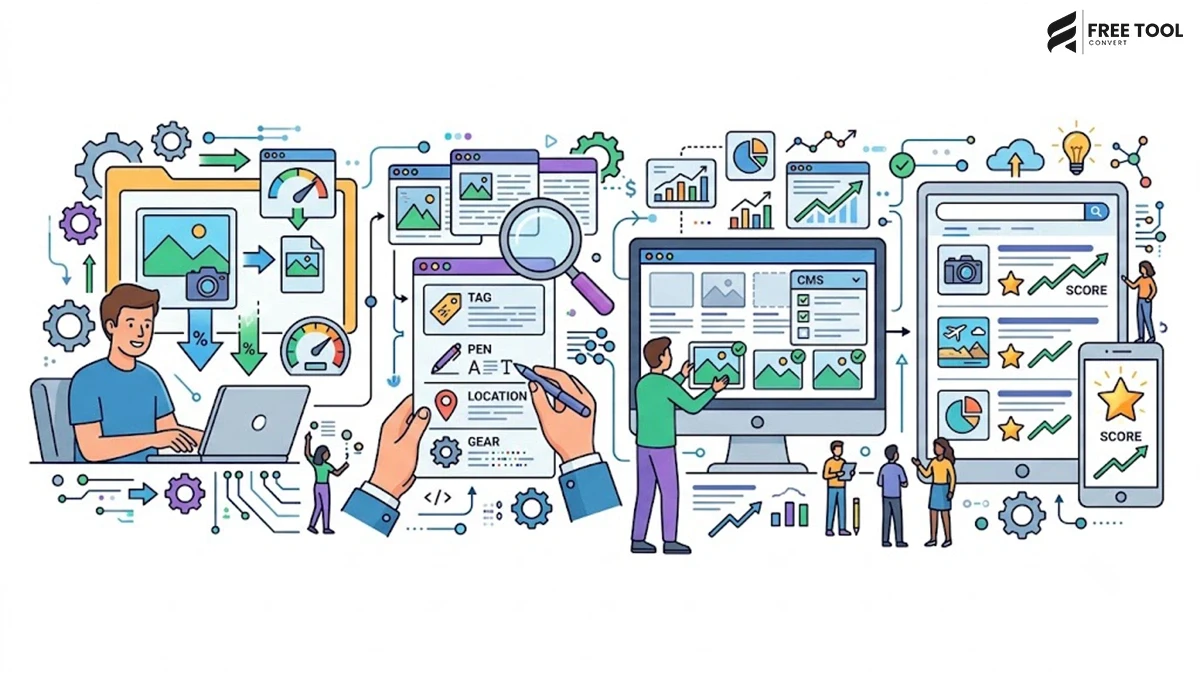
Introduction: How to Optimize Images for SEO
Images are one of the most powerful elements of a website. They make content engaging, improve readability, showcase products, and create a memorable user experience. However, if images are not properly optimized, they can become one of the biggest reasons your website loads slowly.
A slow-loading website doesn’t just frustrate visitors—it can reduce conversions, increase bounce rates, and affect search visibility. Google increasingly values websites that provide a fast and seamless user experience, making image optimization an essential part of every SEO strategy.
The good news is that you don’t need expensive design software or a professional graphic designer to optimize your images. With browser-based tools like FreeToolConvert, anyone can compress images, resize graphics, convert file formats, and prepare SEO-friendly visuals in just a few clicks.
This guide explains everything you need to know about image optimization, why it matters for SEO and Generative Engine Optimization (GEO), and how FreeToolConvert helps website owners create faster, more search-friendly websites.
Table of Contents
What Is Image Optimization?
Image optimization is the process of reducing an image’s file size while maintaining visual quality. It also includes choosing the right file format, resizing dimensions, using descriptive filenames, and adding optimized alt text.
The goal is to create images that:
- Load quickly
- Look professional
- Improve website performance
- Support better user experience
- Help search engines understand visual content
Optimized images not only make your website faster but also improve accessibility and usability.
Why Image Optimization Is Important for SEO
Many website owners invest heavily in content but overlook their images. Large or poorly optimized images can slow down even the best-designed websites.
Proper image optimization helps by:
- Improving page speed
- Reducing bounce rates
- Supporting Core Web Vitals
- Enhancing mobile performance
- Increasing user engagement
- Helping search engines crawl pages more efficiently
When your website loads faster and provides a better experience, visitors are more likely to stay, explore, and convert.
Does Google Rank Optimized Images Higher?
Google doesn’t rank images solely because they are compressed, but optimized images contribute to several important ranking factors.
For example:
- Faster loading improves page experience.
- Better performance supports Core Web Vitals.
- Smaller images enhance mobile usability.
- Descriptive filenames and alt text improve image search visibility.
Combined, these improvements strengthen your website’s overall SEO.
Step 1 – Choose the Right Image Format
One of the easiest ways to optimize images is by selecting the correct format.
JPG (JPEG)
Best for:
- Blog images
- Photographs
- Social media graphics
Advantages:
- Small file size
- Good quality
- Universal compatibility
PNG
Best for:
- Logos
- Transparent backgrounds
- Graphics with text
Advantages:
- Lossless quality
- Transparency support
Disadvantage:
- Larger file size
WebP
Best for:
- Websites
- eCommerce
- Landing pages
- Blogs
Advantages:
- Excellent quality
- Much smaller file size
- Better website performance
Using the FreeToolConvert JPG to WebP Converter, you can reduce image sizes significantly without compromising quality.
Step 2 – Compress Images Before Uploading
Uploading original camera images directly to your website is one of the most common SEO mistakes.
Modern smartphone photos often exceed 5–10 MB, which dramatically increases page loading time.
The FreeToolConvert Image Compressor reduces file sizes while preserving image clarity.
Benefits include:
- Faster websites
- Better user experience
- Lower bandwidth usage
- Improved loading speed
Compress every image before publishing it online.
Step 3 – Resize Images to the Correct Dimensions
Many websites upload images that are far larger than necessary.
For example:
A website banner displayed at 1200 × 600 pixels does not need an original image measuring 5000 × 3000 pixels.
Using oversized images wastes bandwidth and slows loading times.
The FreeToolConvert Image Resizer allows you to resize images according to your website’s actual display requirements.
This improves efficiency without sacrificing visual quality.
Step 4 – Crop Images to Remove Unnecessary Areas
Sometimes images contain unnecessary backgrounds or empty space.
Cropping helps:
- Focus attention on the main subject
- Reduce file size
- Improve visual appeal
The FreeToolConvert Image Cropper lets you quickly create cleaner, more professional images that are ready for websites, blogs, and social media.
Step 5 – Use Descriptive File Names
Before uploading images, rename them with descriptive keywords instead of leaving default camera filenames.
Incorrect:
IMG_54892.jpg
Better:
blue-running-shoes-men.jpg
Meaningful filenames help search engines understand image content and can improve visibility in image search results.
Step 6 – Add Optimized Alt Text
Alt text (alternative text) describes an image for search engines and users who rely on screen readers.
Good alt text should:
- Describe the image accurately
- Include relevant keywords naturally
- Avoid keyword stuffing
Example:
Good Alt Text:
“Red leather office chair with ergonomic back support.”
Avoid generic descriptions like “image1” or repeating keywords unnecessarily.
Step 7 – Use Images That Match Your Content
Search engines increasingly focus on content relevance.
Your images should directly support the topic of your page.
For example:
A blog about website speed should include screenshots, optimization examples, or graphics related to performance—not unrelated stock photos.
Relevant visuals improve both user experience and content quality.
How Image Optimization Supports GEO (Generative Engine Optimization)
AI-powered search experiences prioritize content that is helpful, easy to access, and delivers a positive user experience.
Optimized images contribute by:
- Improving page speed
- Reducing loading delays
- Enhancing mobile usability
- Supporting accessibility through alt text
- Making content easier to consume
By combining high-quality visuals with efficient optimization, you create pages that are more likely to perform well in both traditional search engines and AI-assisted search platforms.
Step 8 – Use WebP Images for Better Performance
One of the easiest ways to improve website performance is by switching from traditional image formats like JPG and PNG to WebP.
Developed to provide excellent quality with significantly smaller file sizes, WebP has become the preferred format for modern websites.
Compared to JPG and PNG, WebP images generally:
- Load faster
- Consume less bandwidth
- Improve mobile performance
- Enhance Core Web Vitals
- Reduce server storage
Using the FreeToolConvert JPG to WebP Converter, you can convert images in seconds without installing software. This simple step helps create faster-loading pages and a smoother browsing experience for your visitors.
Step 9 – Enable Lazy Loading
Not every image needs to load the moment someone visits your webpage.
Lazy loading delays the loading of images until they are about to appear on the visitor’s screen.
This offers several benefits:
- Faster initial page load
- Lower bandwidth consumption
- Better user experience
- Improved mobile browsing
Most modern CMS platforms support lazy loading, and combining it with optimized images creates an even faster website.
Step 10 – Create an Image Sitemap
Search engines don’t always discover every image automatically.
An Image Sitemap helps Google understand:
- Which images exist on your website
- Where they are located
- Which pages they belong to
Submitting an image sitemap increases the chances of your visuals appearing in Google Images, bringing additional organic traffic.
This is especially useful for:
- E-commerce websites
- Photography portfolios
- Blogs
- News websites
Step 11 – Optimize Images for Mobile Users
Today, the majority of website visitors browse using smartphones.
Mobile users expect pages to load quickly, even on slower internet connections.
To improve mobile performance:
- Compress every image
- Use WebP whenever possible
- Resize images appropriately
- Avoid unnecessarily large banners
- Test image loading across different devices
Optimized mobile images improve both usability and SEO performance.
Step 12 – Keep Image Dimensions Consistent
Consistency improves both design and performance.
For example:
Blog featured images:
1200 × 630 px
Product images:
1000 × 1000 px
Team member photos:
500 × 500 px
Using consistent dimensions creates a cleaner website while preventing layout shifts that affect user experience.
Step 13 – Avoid Using Images with Embedded Text
Many businesses place important information inside images.
Examples include:
- Contact details
- Product descriptions
- Business information
Search engines cannot interpret image text as effectively as regular webpage content.
Instead:
- Keep important content as HTML text
- Use images only for visual support
- Add descriptive alt text where necessary
This improves both accessibility and search visibility.
Step 14 – Optimize Images Before Every Upload
Many website owners optimize old images but forget to optimize new uploads.
Make image optimization part of your publishing workflow.
Before uploading any image:
- Resize it
- Compress it
- Convert it to WebP (when appropriate)
- Rename the file descriptively
- Add optimized alt text
A consistent workflow saves time and keeps your website performing well.
Common Image SEO Mistakes to Avoid
Even experienced website owners sometimes make mistakes that reduce performance.
Uploading Original Camera Images
Professional cameras produce extremely large files.
Always resize and compress before uploading.
Ignoring File Names
Generic names like:
IMG_45892.jpg
provide no context.
Instead, use descriptive names such as:
organic-coffee-beans.jpg
Using the Wrong Format
Choose formats based on the purpose:
- JPG → Photographs
- PNG → Transparent graphics
- WebP → Websites
- SVG → Logos and icons
Missing Alt Text
Alt text improves accessibility and helps search engines understand image content.
Avoid leaving it blank unless the image is purely decorative.
Compressing Too Much
Excessive compression can produce blurry images.
Balance quality with performance for the best user experience.
Image Optimization Checklist
Before publishing any webpage, ask yourself:
- Is every image compressed?
- Are images resized correctly?
- Have I converted images to WebP where suitable?
- Are filenames descriptive?
- Does every important image include alt text?
- Are images relevant to the page content?
- Are unnecessary backgrounds cropped?
- Have I tested loading speed on mobile devices?
Following this checklist consistently helps maintain a fast, professional website.
Why Image Optimization Matters for Digital Marketing
Image optimization benefits more than just SEO.
It improves:
- Landing page performance
- Social media sharing
- Email marketing
- Paid advertising
- Product pages
- Blog engagement
Fast-loading visuals create a smoother customer journey, encouraging visitors to stay longer and interact more with your content.
Why FreeToolConvert Is the Best Choice for Image Optimization
Instead of relying on multiple applications, FreeToolConvert provides a complete suite of browser-based image optimization tools in one place.
Some of the most useful include:
Image Compressor
Reduce file sizes without noticeable quality loss.
JPG to WebP Converter
Improve website speed with modern image formats.
Image Resizer
Resize graphics for websites, blogs, online stores, and social media.
Image Cropper
Remove unnecessary sections and create cleaner visuals.
HEIC to JPG Converter
Convert iPhone images into universally supported formats.
PNG to JPG Converter
Create lighter image files when transparency isn’t required.
Color Picker
Maintain consistent branding across your website and marketing materials.
Everything works directly in your browser without software installation, making FreeToolConvert an efficient solution for website owners, marketers, designers, bloggers, and businesses.
The Future of Image SEO
As search engines continue to evolve, image optimization will become even more important.
Artificial intelligence is already helping search platforms understand visual content more effectively.
Future trends include:
- AI-powered image optimization
- Automatic image compression
- Intelligent alt text generation
- Faster image delivery through modern formats
- Better visual search capabilities
- Improved accessibility standards
Businesses that optimize their images today will be better prepared for tomorrow’s AI-powered search ecosystem.
Conclusion
Image optimization is no longer optional—it’s a fundamental part of building a fast, user-friendly, and search-optimized website. From choosing the right file format to compressing images, resizing them correctly, adding descriptive alt text, and using modern formats like WebP, every optimization contributes to a better browsing experience.
You don’t need expensive editing software or professional design skills to achieve excellent results. FreeToolConvert makes the entire process simple by offering a complete collection of browser-based image optimization tools that anyone can use.
Whether you’re running a personal blog, an eCommerce store, a business website, or a digital marketing campaign, optimized images can improve page speed, strengthen SEO, enhance accessibility, and support better performance in both traditional search engines and AI-driven search experiences.
By making image optimization part of your regular workflow, you’ll create faster websites that are easier to navigate, more enjoyable to use, and better positioned for long-term online success.
Frequently Asked Questions
What is image optimization for SEO?
Image optimization is the process of reducing file sizes, choosing appropriate formats, resizing images, and adding descriptive metadata to improve website performance and search visibility.
Does image optimization improve Google rankings?
Optimized images contribute to faster loading speeds, improved user experience, and better Core Web Vitals, all of which support overall SEO performance.
Which image format is best for websites?
WebP is generally the best choice because it offers excellent image quality with smaller file sizes than JPG and PNG.
Can I optimize images without Photoshop?
Yes. Browser-based platforms like FreeToolConvert allow you to compress, resize, crop, and convert images without installing any software.
Should every image have alt text?
Important content images should include descriptive alt text to improve accessibility and help search engines understand the image.
How much should I compress images?
Compress images enough to reduce file size while maintaining good visual quality. Avoid excessive compression that makes images appear blurry.
Why should I resize images before uploading them?
Resizing prevents oversized images from slowing down your website and reduces unnecessary bandwidth usage.
Can image optimization improve mobile performance?
Yes. Smaller, properly optimized images load faster on mobile devices, improving user experience and engagement.
Is FreeToolConvert free to use?
Yes. FreeToolConvert offers a wide range of free online image optimization and productivity tools.
Why should I choose FreeToolConvert for image optimization?
FreeToolConvert combines image compression, format conversion, resizing, cropping, PDF tools, and many other browser-based utilities into one fast, secure, and easy-to-use platform.
Optimize Your Website Images with FreeToolConvert
High-quality images don’t have to slow down your website. With FreeToolConvert, you can compress, resize, crop, and convert images in just a few clicks—without installing software or sacrificing quality.
Whether you’re a blogger, business owner, developer, or digital marketer, FreeToolConvert gives you everything you need to create faster websites, improve SEO, and deliver a better experience for every visitor.
Start optimizing your images today with FreeToolConvert and build a website that’s faster, smarter, and ready for the future of search.