
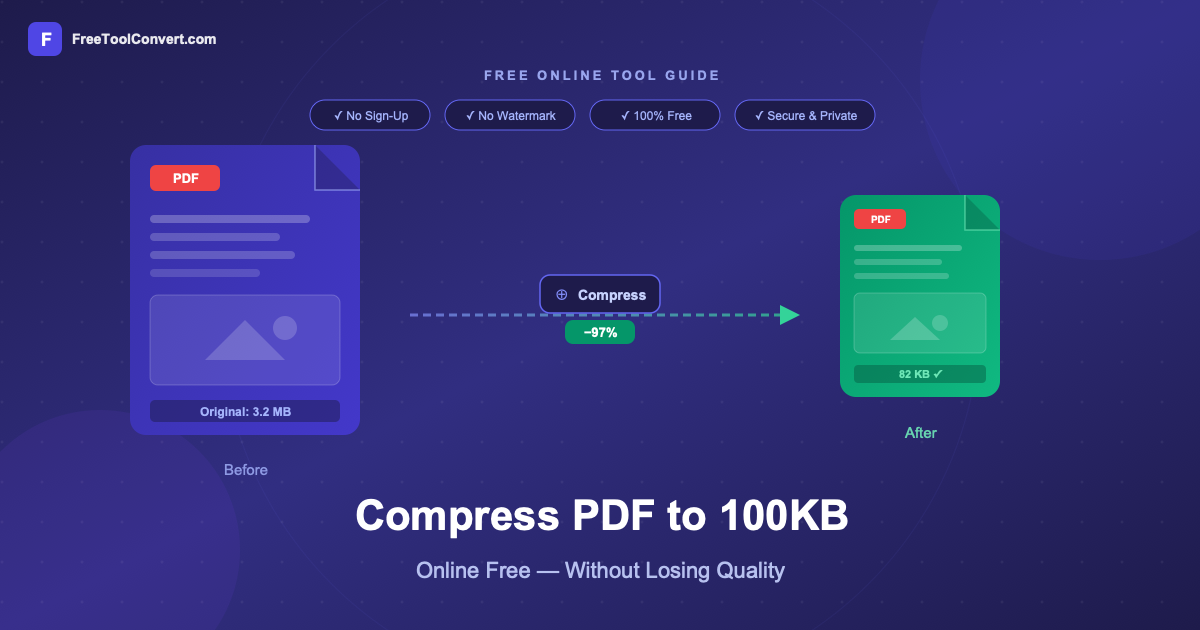
How to Compress PDF to 100KB Online Free (Without Losing Quality)
Need to compress a PDF to 100KB but don’t want to install software or sign up for yet another service? You’re in the right place. In this guide, you’ll learn exactly how to shrink any PDF file to 100KB — or even smaller — completely free, directly in your browser, in under 60 seconds.
Whether you’re uploading a resume to a job portal, submitting documents to a government website, or sending files over WhatsApp, file size limits are a daily frustration. The good news: compressing a PDF to 100KB doesn’t have to mean blurry text or broken formatting — if you use the right tool and the right settings.
- Why PDFs are large in the first place
- How to compress a PDF to 100KB in 3 steps (free, no login)
- Which compression level to pick without sacrificing quality
- When compression works best — and when it doesn’t
- 5 common questions answered
Why Are PDF Files So Large?
Most oversized PDFs fall into one of three categories:
- Image-heavy PDFs — scanned documents, brochures, photo portfolios. Each embedded image can be 1–5MB on its own.
- Unoptimised exports — Word documents exported to PDF with full-resolution images and embedded fonts that haven’t been subsetted.
- Multiple-page documents — presentations, reports, or ebooks where every page accumulates file size.
PDF compression works by resampling high-resolution images inside the file to a lower DPI (dots per inch), removing redundant metadata, and streamlining embedded fonts. The text itself remains crisp and selectable — only the images are affected, and only at a level that’s invisible on screen at normal zoom levels.
How to Compress a PDF to 100KB Online Free — Step by Step
-
Step 1: Open the PDF Compressor
Go to the free PDF compressor tool on FreeToolConvert. No account needed — the tool loads instantly in any browser on desktop, Android, or iPhone.
-
Step 2: Upload Your PDF and Choose Compression Level
Click Upload PDF and select your file (up to 50MB supported). You’ll see three compression levels:
- Low compression — reduces file size by ~30–40%, best quality. Use this for professional documents, contracts, or anything with small text.
- Medium compression — reduces file size by ~55–65%, very good quality. Best for most everyday documents, resumes, and forms.
- High compression — reduces file size by ~75–85%, acceptable quality. Use this when hitting strict size limits (like 100KB or 200KB portals).
To reach 100KB: For most PDFs under 2MB, Medium compression will do it. For larger files (2–10MB), use High compression. Try Medium first — you can always re-compress with High if needed.
-
Step 3: Download Your Compressed PDF
Click Compress PDF. Your file is processed on our secure servers with TLS encryption. Once done (usually under 5 seconds), click Download. Your compressed PDF is ready. Original files are automatically deleted from our servers after 1 hour.
That’s it — three clicks, no software, no watermarks, no file limits hidden behind a paywall.
What Compression Level Should You Choose?
Here’s a practical cheat-sheet based on your PDF’s original size and target:
| Original file size | Target: 100KB | Target: 200KB | Target: 500KB |
|---|---|---|---|
| Under 500KB | Medium | Low | Low |
| 500KB – 2MB | High | Medium | Low |
| 2MB – 10MB | High | High | Medium |
| Over 10MB | High + split PDF first | High | Medium |
Pro tip: If your PDF is mostly text (a resume, a form, a Word export), compression will reduce size by 40–60% even on Low setting because text-only PDFs have very little image data to recompress. Save High compression for photo-heavy documents.
Will Compressing a PDF Reduce Text Quality?
No — and this is one of the biggest misconceptions about PDF compression. Text in a PDF is stored as vector data, not as an image. It is never affected by image compression. Only rasterised content (photos, scanned pages, graphics) gets resampled.
The only scenario where text appears blurry after compression is if the PDF was created by scanning a physical document. In that case, the entire page is stored as a bitmap image — and aggressive compression will reduce that image quality. For scanned documents, use Low or Medium compression and check the output before finalising.
Common Situations Where You Need to Compress to 100KB
Here are the most frequent real-world reasons people need a PDF under 100KB — and why this tool handles all of them:
- Government job portals (SSC, UPSC, state PSC) — Most Indian government recruitment portals cap documents at 100KB or 200KB. Resumes, certificates, and photographs all need to meet this limit.
- College and university applications — Online admission forms commonly restrict uploaded documents to 100–300KB.
- Email attachments — Gmail’s 25MB limit sounds generous, but if you’re sending to someone with a 10MB inbox limit, smaller is always better.
- WhatsApp and Telegram — While both support large file sending, smaller PDFs load faster for the recipient — especially on mobile data.
- Online banking and insurance portals — KYC document uploads often have strict size limits.
When Compression Alone Isn’t Enough
If your PDF is a 50-page presentation with full-resolution photos on every slide, even High compression may leave you with a file larger than 100KB. In that case, try these additional steps:
- Split the PDF first — Use our free PDF Splitter to break the document into smaller sections, then compress each part.
- Merge after compressing — Compress each section individually, then use the PDF Merger to combine them back into one file.
- Compress images before creating the PDF — Use our Image Compressor to reduce each photo to under 200KB before inserting into your document.
Is It Safe to Compress PDF Files Online?
A common concern — and a fair one. Here’s exactly how FreeToolConvert handles your files:
- All file transfers are encrypted with TLS (Transport Layer Security) — the same protocol used by banks.
- Your PDF is processed on our servers for compression and automatically deleted within 1 hour of processing.
- We never read, store, index, or share your file contents.
- No account is required — there’s no way for your files to be associated with an identity.
- PDF to Word Converter — Convert PDF back to an editable Word document
- PDF Merger — Combine multiple PDFs into one file
- PDF Splitter — Extract pages or split a PDF into multiple files
- Image Compressor — Compress JPG, PNG, WebP under 50KB
- Word to PDF Converter — Convert DOC/DOCX to PDF free
Frequently Asked Questions
Can I compress a PDF to exactly 100KB?
PDF compression tools reduce file size by a percentage, not to an exact byte target. To get under 100KB, use High compression on most files. If the result is still slightly above 100KB, try splitting the PDF into fewer pages, then compressing each part. For text-only PDFs, Low or Medium compression is usually enough to hit 100KB.
Does compressing a PDF affect the text quality?
No. Text in PDFs is vector data and is not affected by image compression. Only embedded photos and graphics are resampled. The text will remain sharp, selectable, and searchable after compression.
Can I compress a scanned PDF?
Yes. Scanned PDFs (where every page is a photo) can be compressed, but the compression will affect image clarity since there is no vector text to preserve. Use Low or Medium compression for scanned documents to maintain legibility.
Is there a file size limit for the free compressor?
FreeToolConvert supports PDF files up to 50MB for free compression — with no daily limit and no watermark added to the output. There is no sign-up required.
Does the compressed PDF work on all devices?
Yes. Compressed PDFs remain standard PDF files (ISO 32000 format) and open correctly on all PDF viewers — Adobe Acrobat, Apple Preview, Google Chrome, Android PDF viewers, and any other reader.